How to use ARCKEEP
A walk through one real measurement, from a folder of FITS frames to an ADES file for the Minor Planet Center. Each step shows the part of the engine you will use.
The pictures come from seven 19-second frames of the near-Earth asteroid 2019 FL1, taken at Tautenburg (site 033) on 29 March 2019. The frames are not part of the repository. Names in the ADES step are example values. To understand the method behind each step, read how ARCKEEP works.
ARCKEEP is a proof of concept built by first-year space technology students at LTU and coded with AI agents. Check what it tells you before relying on it.
- What you need
- Add your frames
- Let ARCKEEP solve them
- Look at a frame
- Check the frame's facts
- Compare candidate paths
- Review the track in Plot and Verify
- Identify the asteroid
- Resolve flagged frames and confirm
- Export ADES
- Workspaces and memory
- The terminal
- When something goes wrong
1 What you need
- FITS frames of one asteroid from one night, ideally three or more. Each frame's header must give the observation time (
DATE-OBS), the exposure, the telescope's approximate pointing (RA and Dec) and enough to know the pixel scale (a WCS, or pixel size and focal length). - Your observatory's MPC site code, if the header does not carry it.
- A desktop browser. The engine works on a phone, but review is much easier on a large screen.
Your frames stay on your computer. ARCKEEP reads them in the browser and sends only sky positions and asteroid designations to its server (where your data goes).
2 Add your frames
Open the engine. Drag frames or a whole folder onto the drop area, or use Choose files or Choose folder. A folder becomes one sequence; loose files dropped together are treated as one sequence too. You can add several folders to the same workspace, and each stays a separate sequence.

A sequence of eight or more frames with round stars gets one question before anything is solved: Analyse the sequence before solving? Choose Analyse first (or type y) to have ARCKEEP line the frames up on their stars, set hot pixels and satellites apart, and look for one object moving in a straight line. Where that object is detected, it becomes the frame's target candidate, so you do not have to pick it frame by frame. The terminal reports what was found and how long it took, then solving starts. Choose Solve now (or type n) to skip it.
3 Let ARCKEEP solve them
Each frame is read, its stars found and matched to the Gaia catalogue. The file list shows each frame's status and, once solved, how many catalogue stars matched and the fit's RMS. A frame usually solves in a second or two, and the page stays usable while it works.
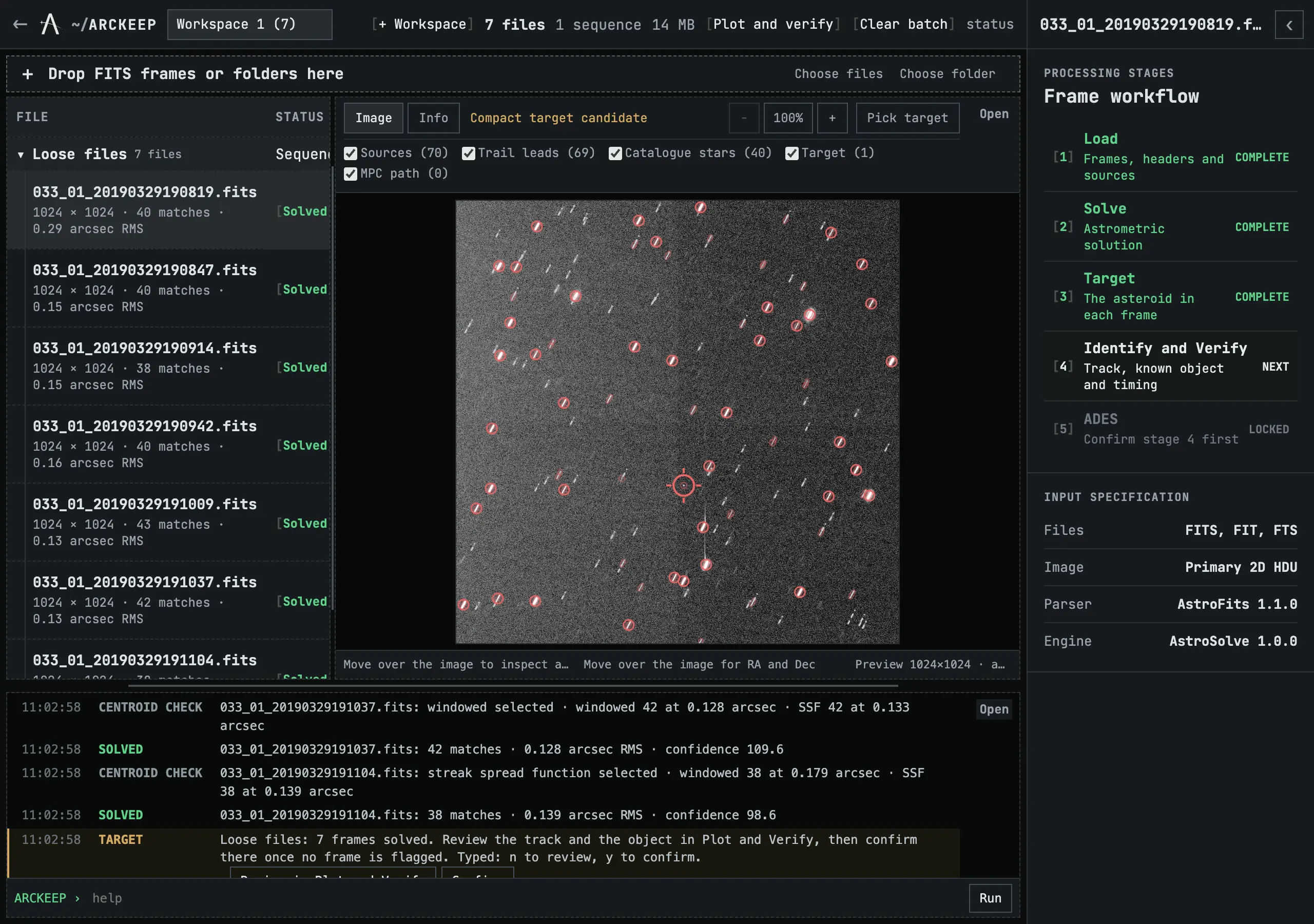
The terminal logs every step: the pointing hint read from the header, the catalogue used, which centroids won, and the result. When every frame is solved it asks one question for the whole sequence, with buttons that say what they do.
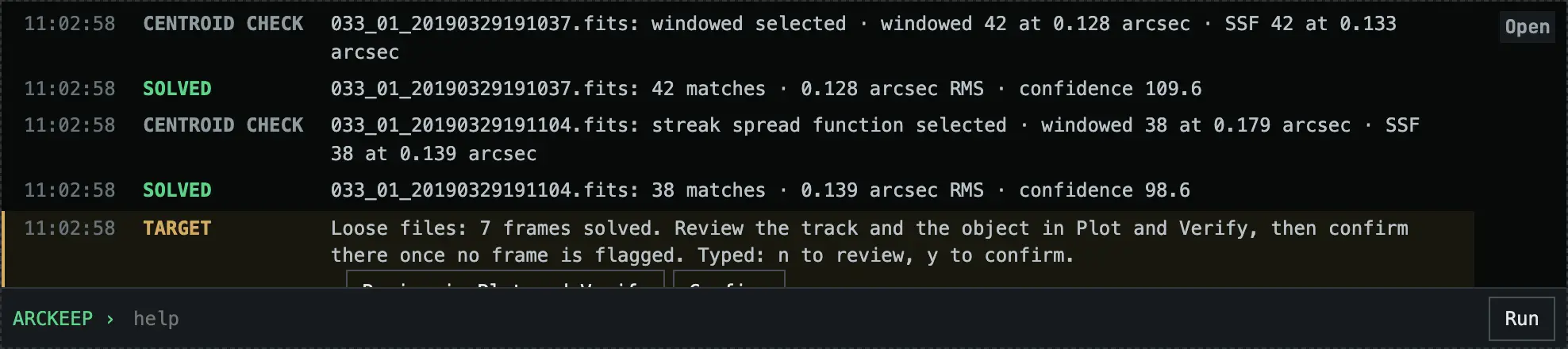
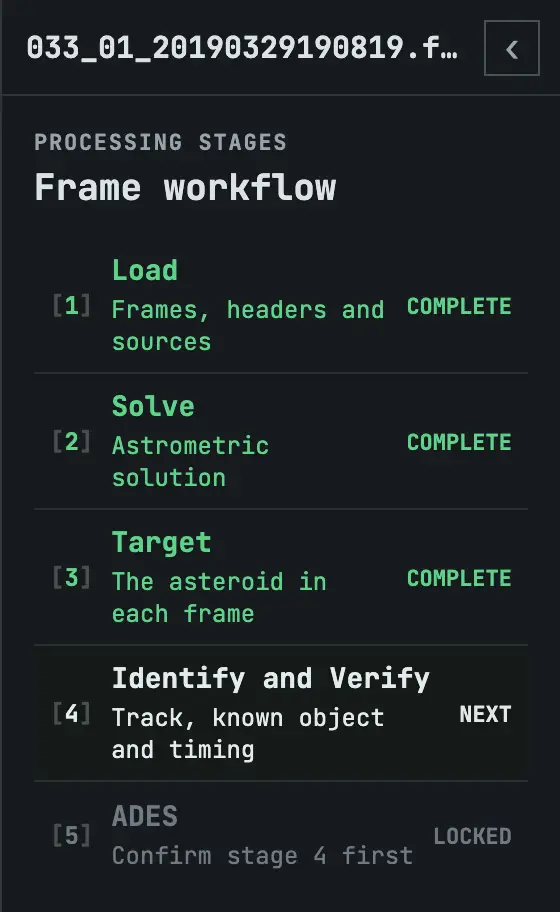
n or y does the same.The processing stages on the right describe the selected frame: Load, Solve, Target, Identify and Verify, and ADES. Each shows a result or a count rather than a bare word, and clicking stages 3 to 5 opens the view where their work happens. The ‹ button collapses the panel.
4 Look at a frame
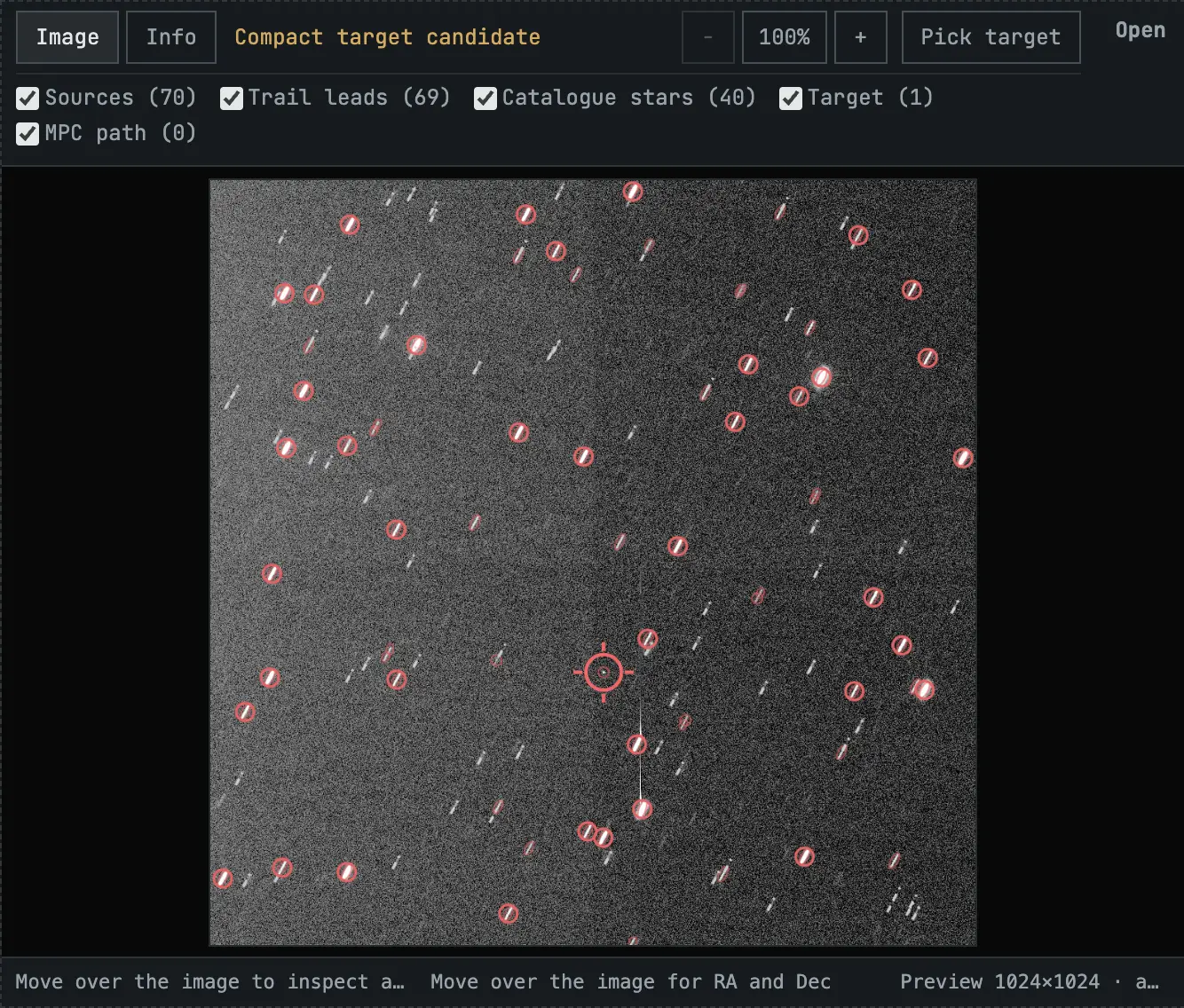
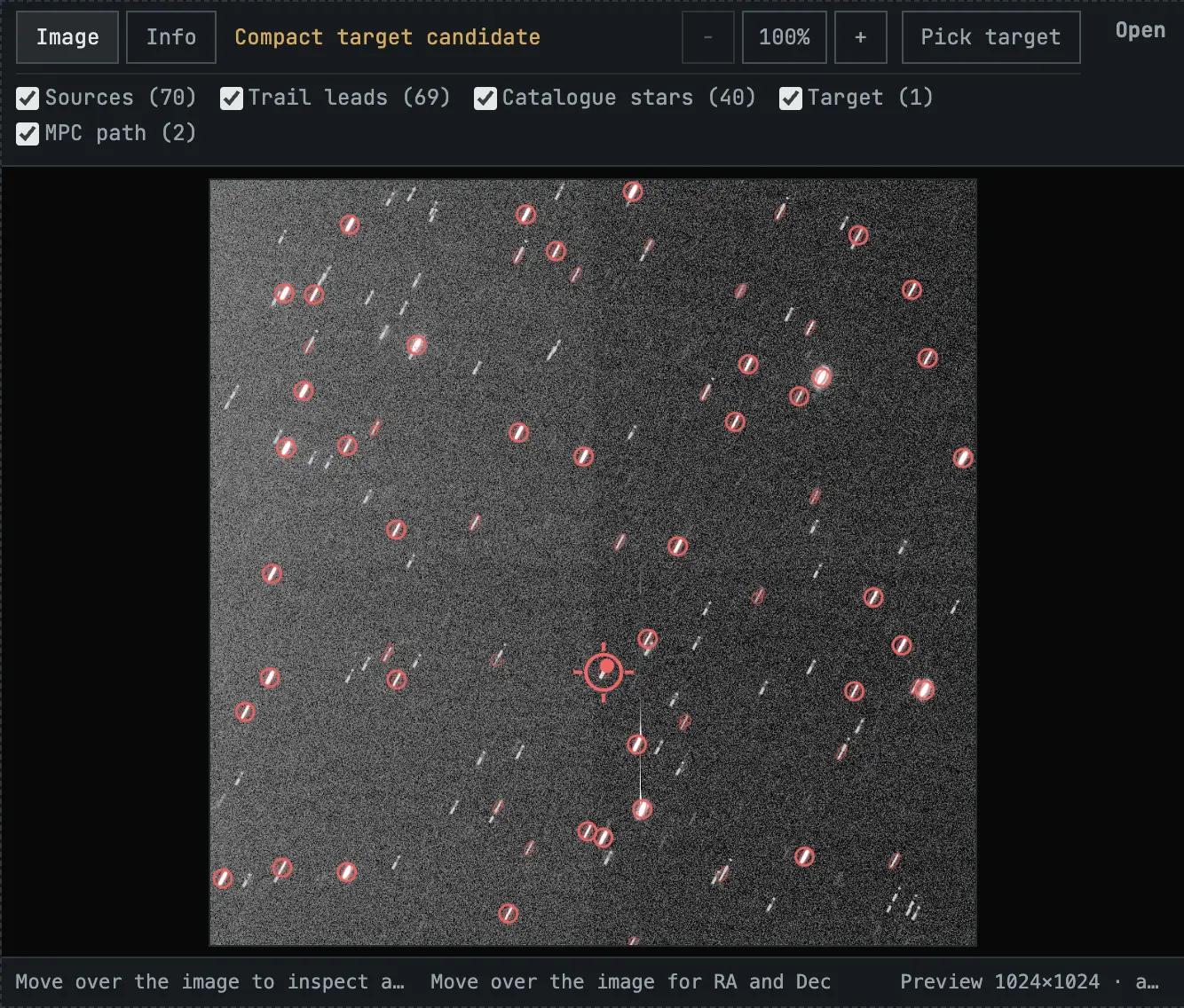
Click any frame in the file list to show it. The Image view marks what ARCKEEP found. Each checkbox turns one kind of marking on or off and shows how many there are. Hiding a marking changes only the display.
- Sources: everything extracted from the frame.
- Trail leads: faint trails found by the line filter, for inspection only.
- Catalogue stars: Gaia stars matched in the solve.
- Target: the asteroid candidate, marked with a cross-hair.
- MPC path: predicted paths of candidate asteroids (step 6).
Noise reduction smooths the displayed frame so faint objects stand out, which helps when you need to confirm that something is really there. It changes only what you see; every measurement still uses the original pixels. The same switch appears beside Export video in Plot and Verify: turn it on before exporting for a noise-reduced video, whose caption and file name then say so. Likewise Target marker there is the same switch as Target above: turn it off to see, or export, the frames without the red circle.
Zoom with + and - or the mouse wheel, drag to pan, and click the percentage to fit the frame again. Moving the pointer over the image shows the pixel position, its original value and, once solved, its RA and Dec. If ARCKEEP found no single candidate, or the wrong one, use Pick target and click the asteroid.
5 Check the frame's facts
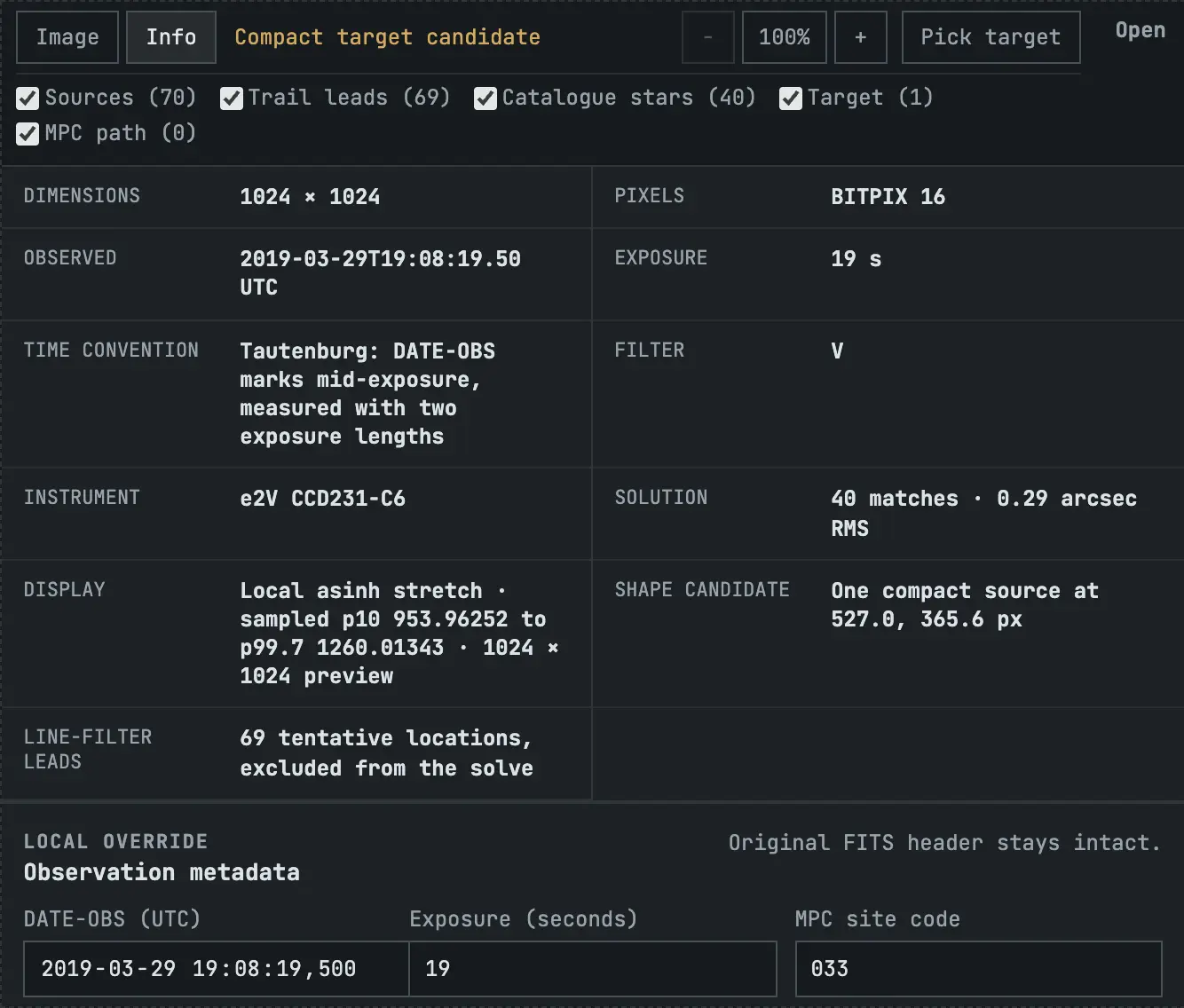
The Info view lists the frame's facts: size, time, exposure, filter, instrument, the target candidate, and the time convention ARCKEEP applied. Check that row. It says whether the header time was taken as the start or the middle of the exposure, and whether that rule has been verified for your site.
If a header value is wrong or missing, correct it in Observation metadata and press Save metadata. Your values are local overrides: the FITS file is never changed, and Use FITS values restores the header. Changing the time or exposure re-runs the affected steps. The pointing and pixel scale cannot be edited here.
6 Compare candidate paths
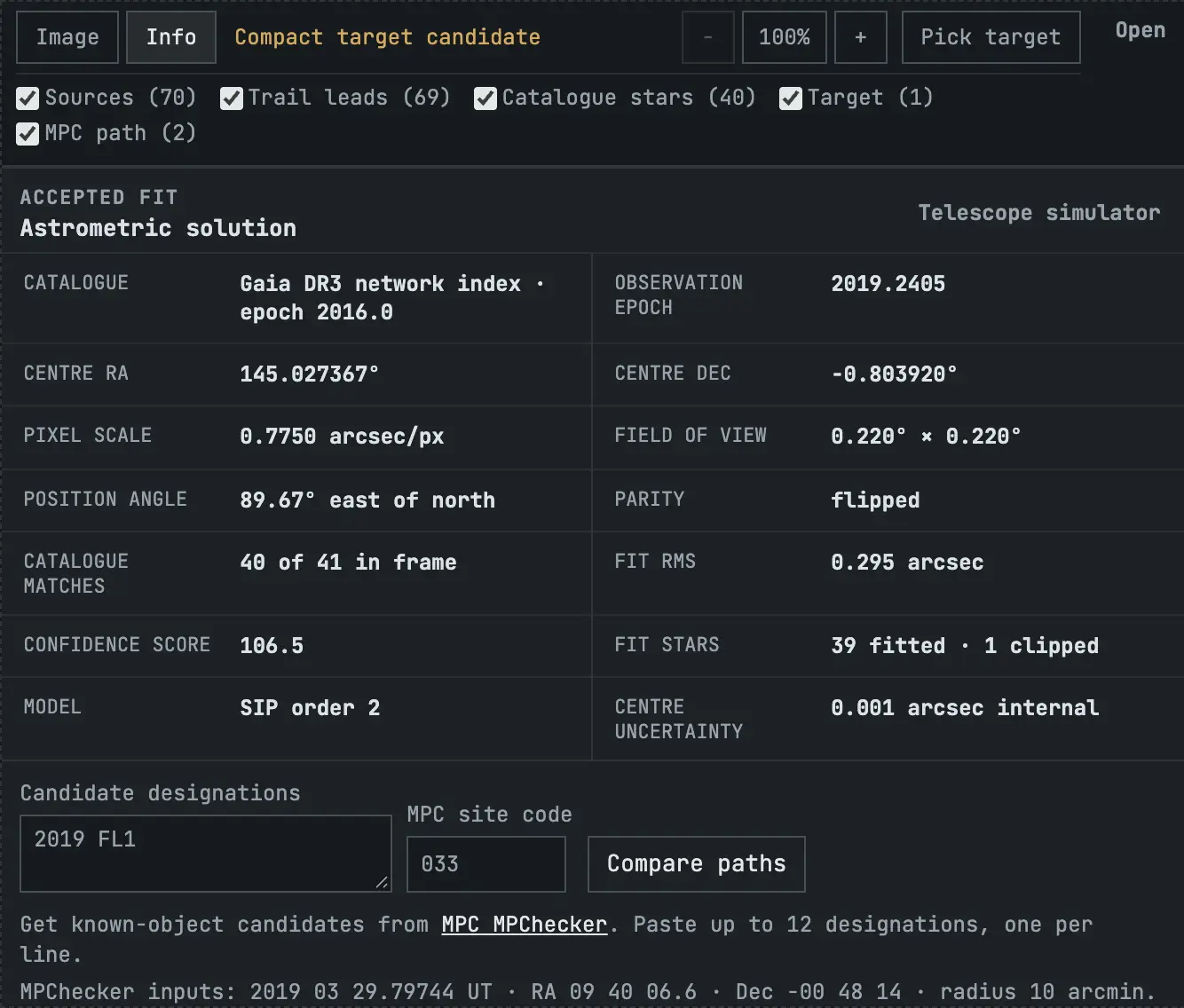
Further down the Info view is the accepted fit: the catalogue, the frame's centre, scale, rotation and field, how many catalogue stars matched and the fit RMS. The fit RMS describes the star fit, not how precisely the asteroid is measured.
Below it, Compare paths draws known asteroids' predicted paths on the frame. The line under the form gives the time, position and radius to type into the MPC's MPChecker, which lists the known objects in your field. Paste up to 12 of its designations, check the site code, and press Compare paths. ARCKEEP says which paths cross the frame and draws them in the Image view.
7 Review the track in Plot and Verify
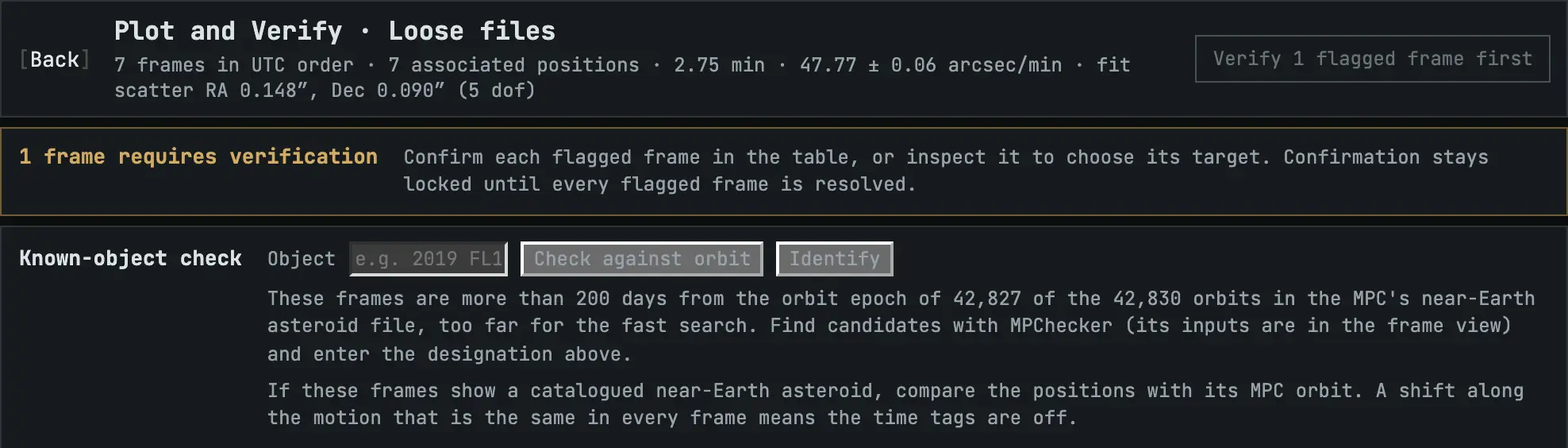
Open Plot and verify from the toolbar or the terminal prompt. The header summarises the track: number of frames, time span, the speed on the sky with its uncertainty, and how far the positions scatter about a straight line. A yellow box lists anything that needs your decision.
The plots show the same positions three ways: on the sky, against time, and as residuals from the straight line. A healthy track is a straight line of evenly spaced points with residuals of a fraction of an arcsecond. Play blinks through the frames with the target marked.
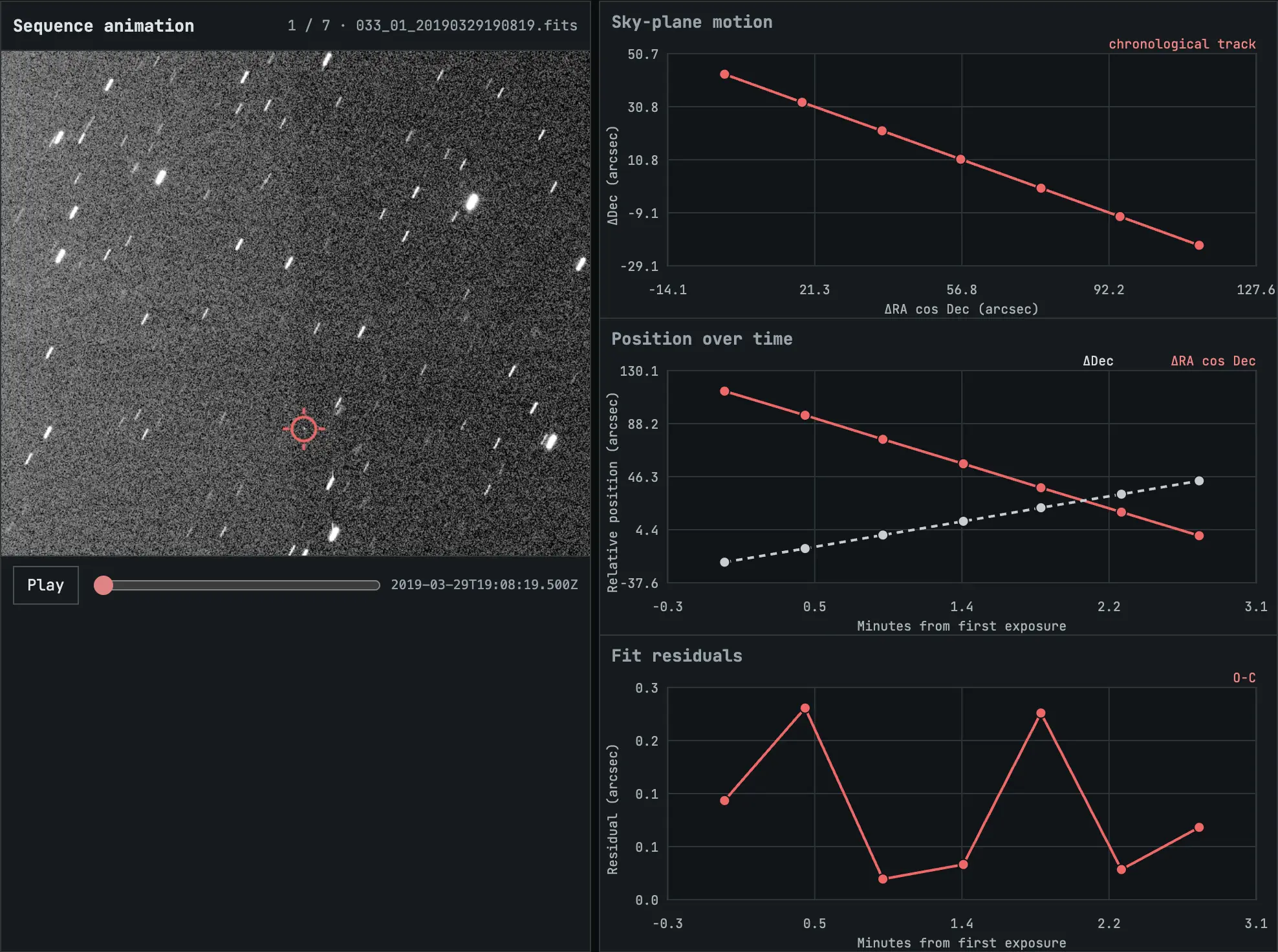
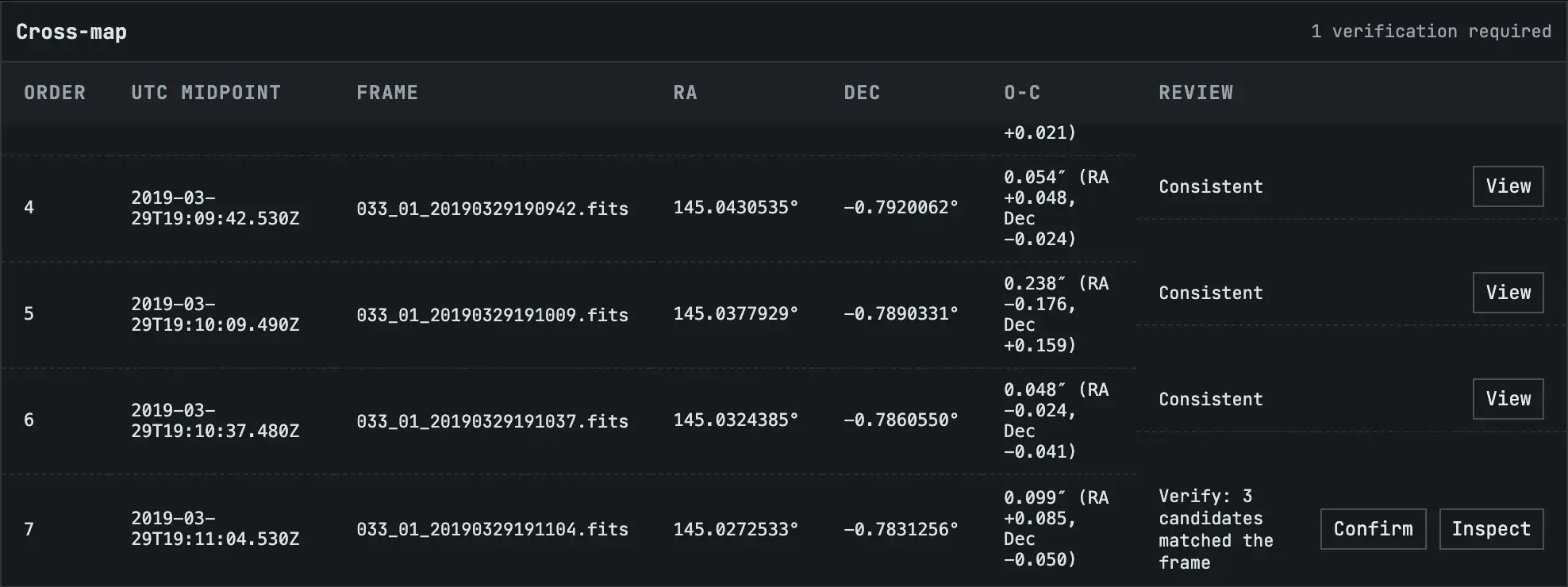
Below the plots, the cross-map table lists every frame: its time, file, RA, Dec and O-C, the distance from the line split into RA and Dec. View opens a frame. A flagged frame instead offers Confirm, if you agree with the track's choice, and Inspect.
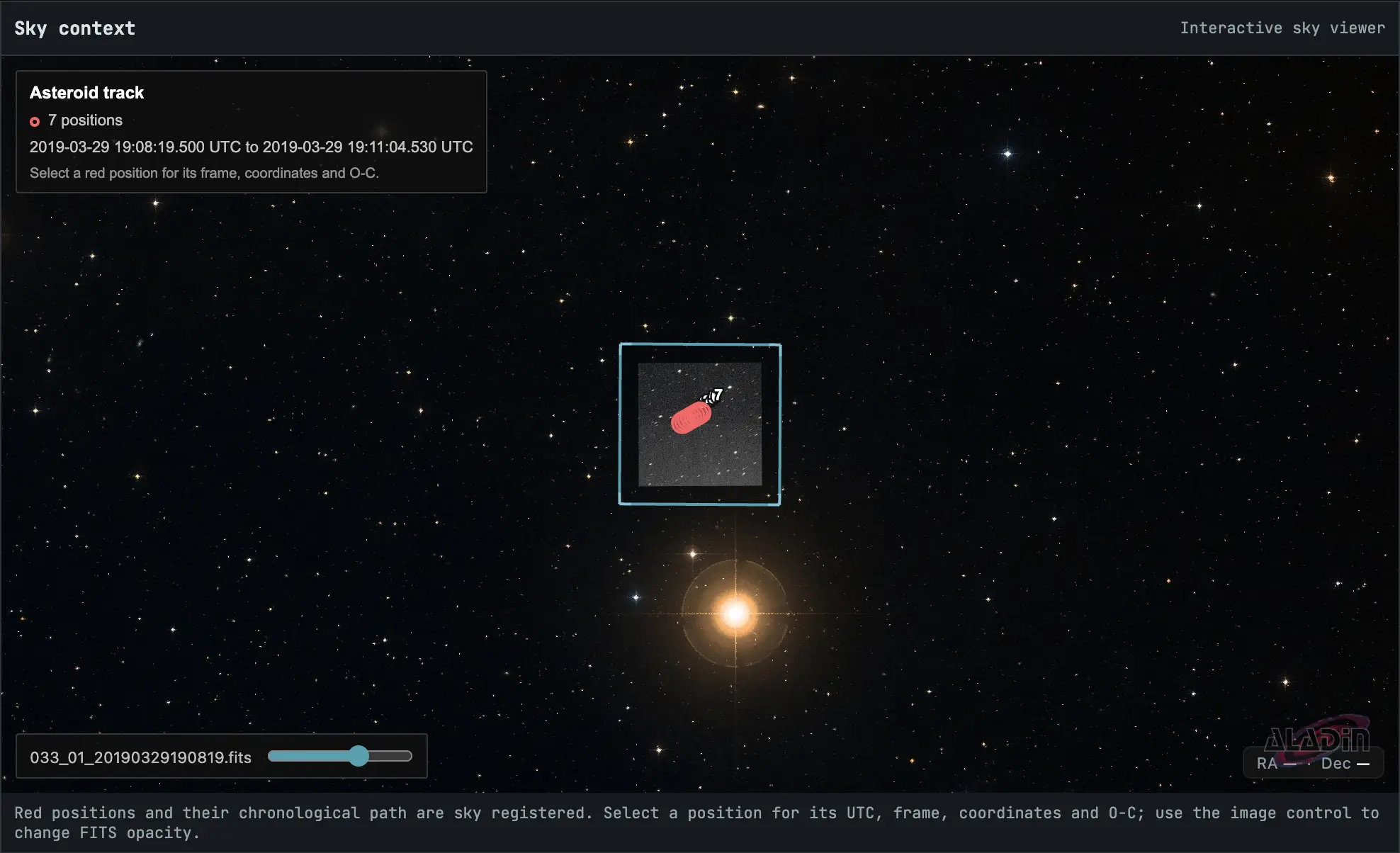
At the bottom, the sky context places your frame and the seven positions on a real sky map. Click a red position for its time, frame, coordinates and O-C; the slider fades the frame in and out.
8 Identify the asteroid
When Plot and Verify opens, ARCKEEP searches every known near-Earth asteroid for one that matches the track. With one match it checks it at once; with several it lists them for you to choose; with none it says what was not searched. Frames more than 200 days from the date of the MPC's orbit file are out of reach, as these 2019 frames are. For them, find candidates with MPChecker and type the designation instead.
Type a designation in Object and press Check against orbit. ARCKEEP compares every position with the object's MPC orbit and answers in the box's title: Consistent with the object, time tags look off, or the orbit is too uncertain to judge. The text gives the mean offsets along and across the motion and the time offset they imply.

9 Resolve flagged frames and confirm
Inspect opens a flagged frame with what the track knows: its choice in a dashed circle, the other candidates numbered, and a cross where the track predicts the asteroid. Choose a candidate, pick a position yourself, or exclude the frame. Each choice returns you to Plot and Verify. To drop every flagged frame at once, use Exclude flagged frames in the yellow box that counts them; each excluded row keeps an Include button, and the track is refitted without them, which can flag a frame that passed before.
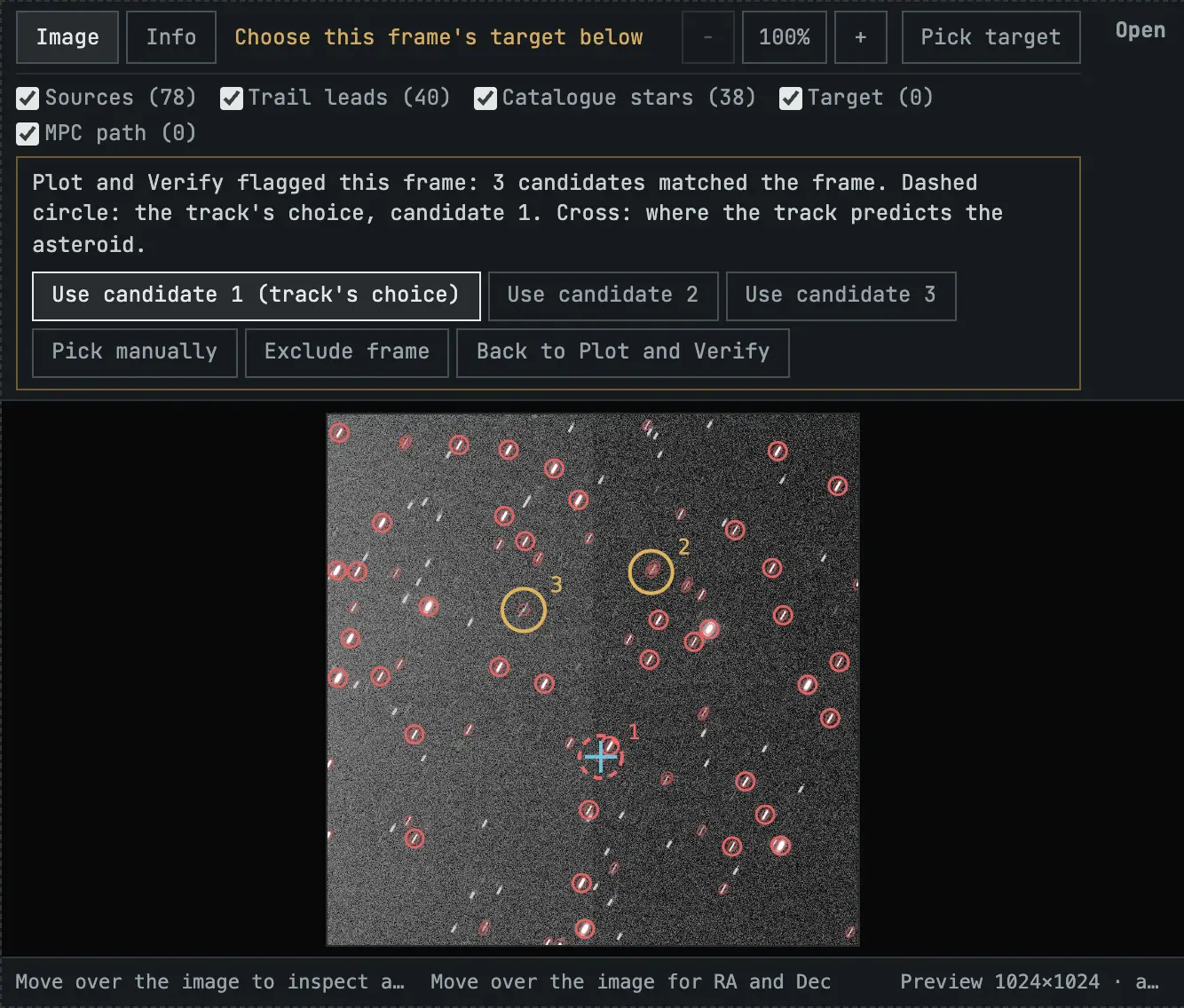
Once no frame is flagged, the button in the header reads Confirm asteroid for 7 frames. One confirmation covers the whole sequence. You can also type y in the terminal. Changing a file, time, solve, target or the export scope afterwards cancels the confirmation.

10 Export ADES
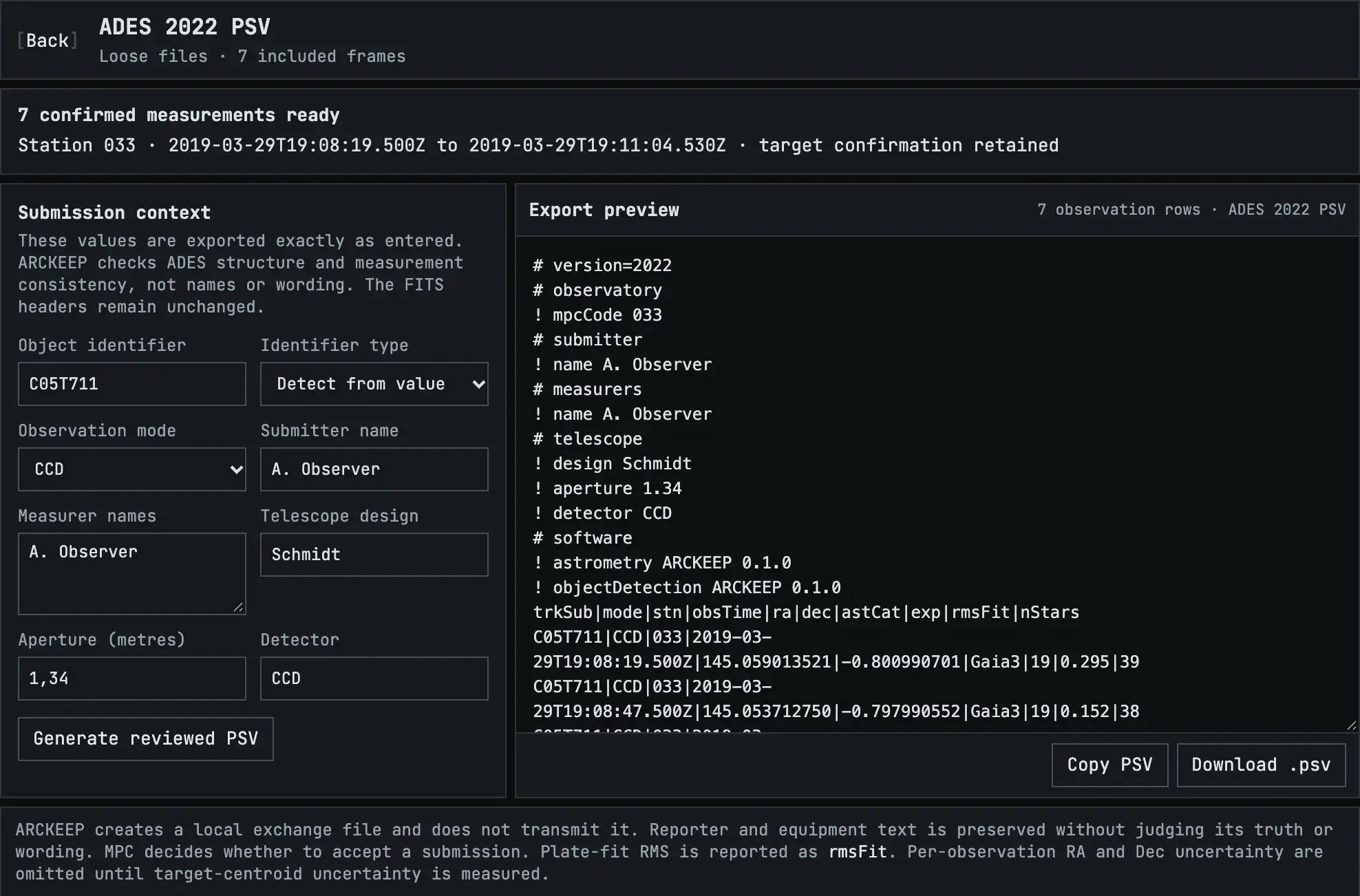
Confirming opens the ADES export for that one sequence. Fill in the object identifier (the designation or tracklet name you report under), the observation mode, the submitter, the measurers (one per line), the telescope design, aperture and detector. Observers, telescope name, focal ratio and filter are optional. An empty field takes the first frame's FITS header, such as APTDIA for the aperture or OBSERVER for the observers, and then what you last exported for the same station; a note under the field says which. Where you typed a value the header disagrees with, the note shows the header's value. ARCKEEP exports these exactly as they stand in the form.
Positions to export starts at five when more frames are confirmed, because the MPC asks for three to five positions of an object per night. ARCKEEP takes them evenly spaced across the sequence, so the first and last frames are always in. Empty the field to export every included frame.
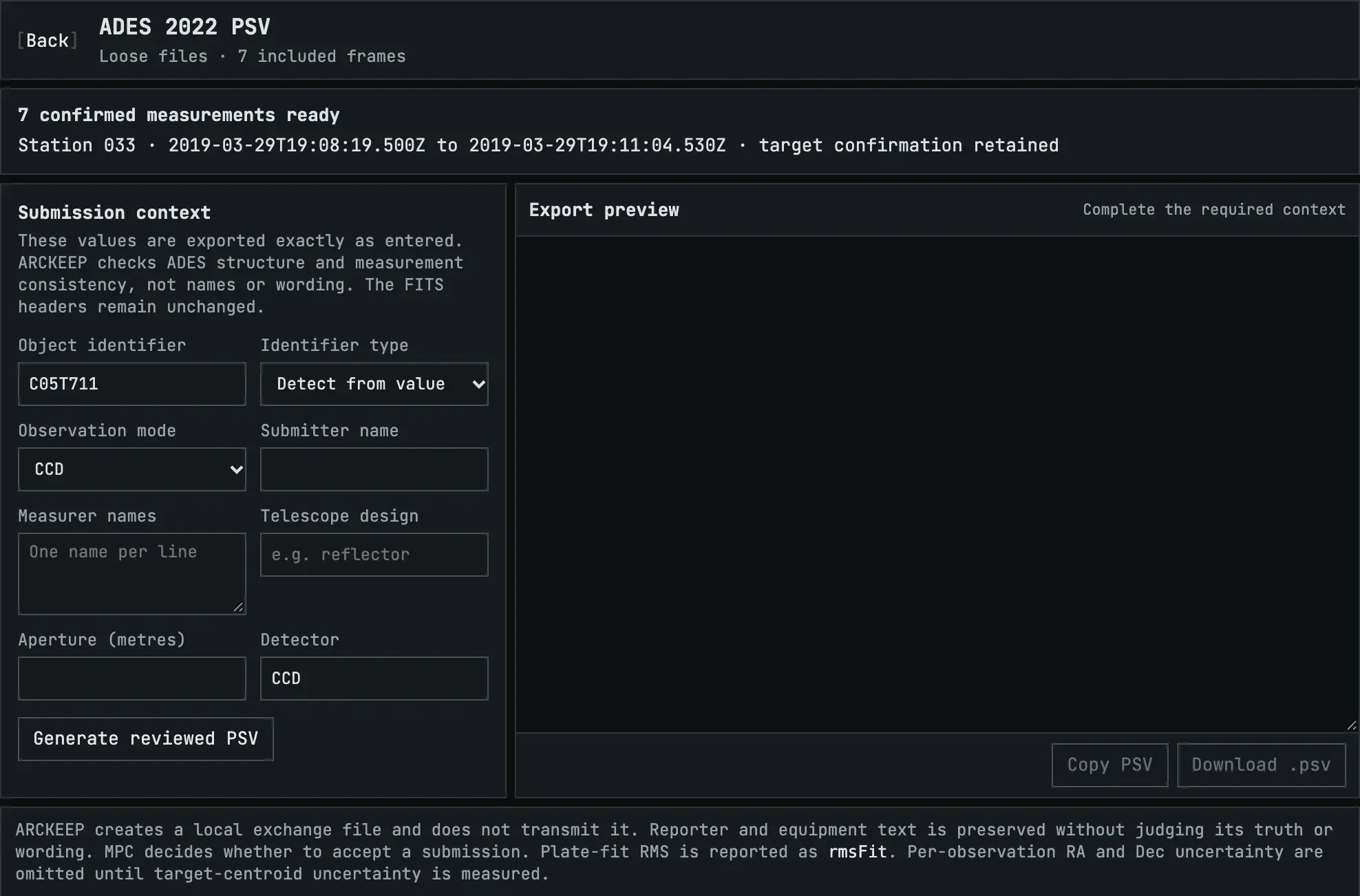
Press Generate reviewed PSV. Read the file in the preview, then Copy PSV or Download .psv. ARCKEEP never sends it: you submit it to the MPC yourself, and the MPC decides whether to accept it. The per-position uncertainty fields are left out on purpose (why).
11 Workspaces and memory
A workspace is a separate desk with its own files, selection, review and terminal history. + Workspace adds one, clicking a tab switches to it, and × closes it. Work continues in the background while you switch.

ARCKEEP remembers your workspaces in this browser: the files, names, ADES details and every decision you made. Close the tab or come back tomorrow and they return as you left them: solved, with your confirmations. After an ARCKEEP update that changes how frames are solved, frames are solved again once; a confirmation stays unless the confirmed target has moved, and then ARCKEEP asks you to confirm it again. Only one tab saves; a second tab says so. They live only in this browser on this computer; another browser or a private window starts empty. Clear batch or removing a frame deletes it from the browser's storage too.
12 The terminal
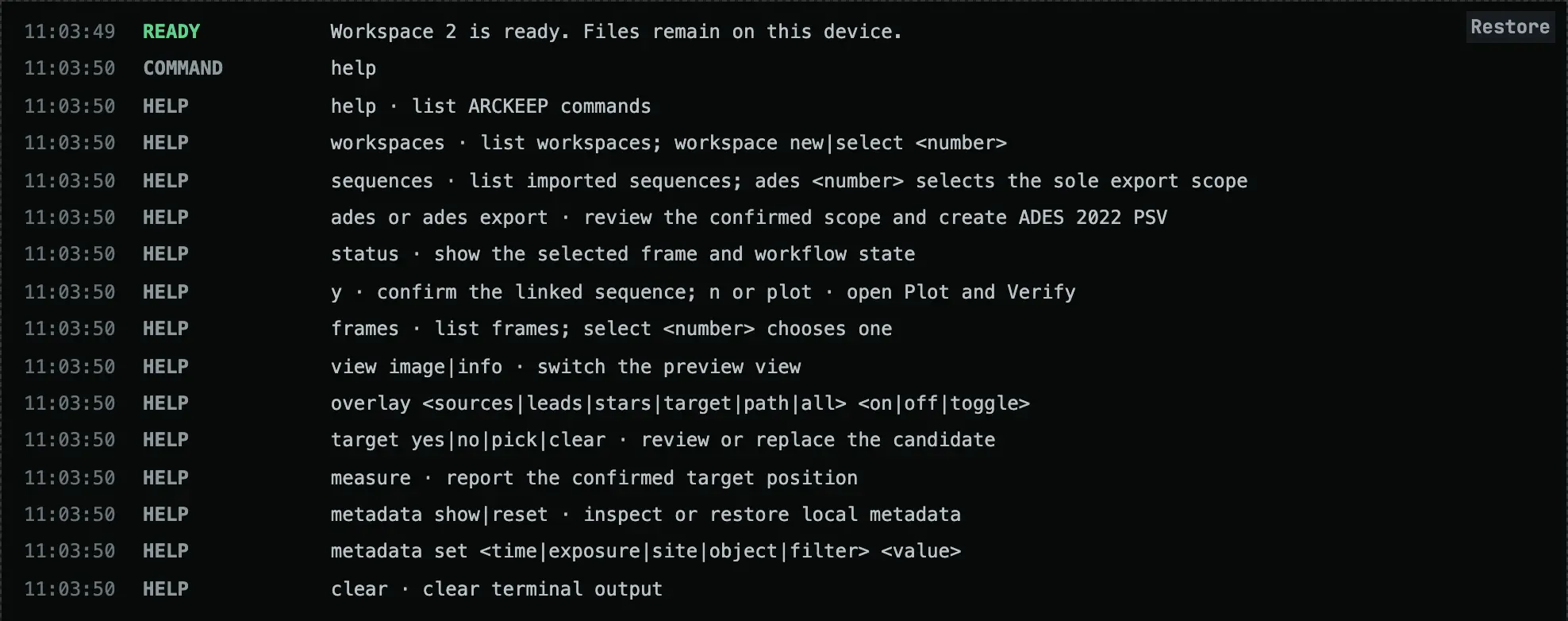
Everything has a button, so the terminal is optional. Type help for the commands. They act only on the frames in this page; there is no access to your computer.
13 When something goes wrong
| You see | What it means | What to do |
|---|---|---|
NEEDS HINT in the terminal | The header lacks the pointing or the pixel scale. ARCKEEP cannot solve a frame without them. | Add RA, Dec and the scale (or a WCS) to the FITS header with your capture or processing software. |
Solve refused | The stars did not match the catalogue around the header's pointing, even after a second, wider attempt. | Check that the header pointing is within a few arcminutes and that the frame shows stars. Very long exposures with long star trails can fail. |
| No target candidate | No single source has the opposite shape to the rest. | Use Pick target, or let Plot and Verify choose from the track. |
| A flagged frame | The position is off the line, or several sources fit. | Inspect it and choose, pick or exclude (step 9). |
| "Time tags look off" | Every position is shifted along the motion by the same amount. | Check whether your camera writes DATE-OBS at the start or the middle of the exposure, and correct the time in the Info view. |
| "Too far for the fast search" | The frames are more than 200 days from the orbit file's date, or the object is not a near-Earth asteroid. | Use MPChecker and Check against orbit. |
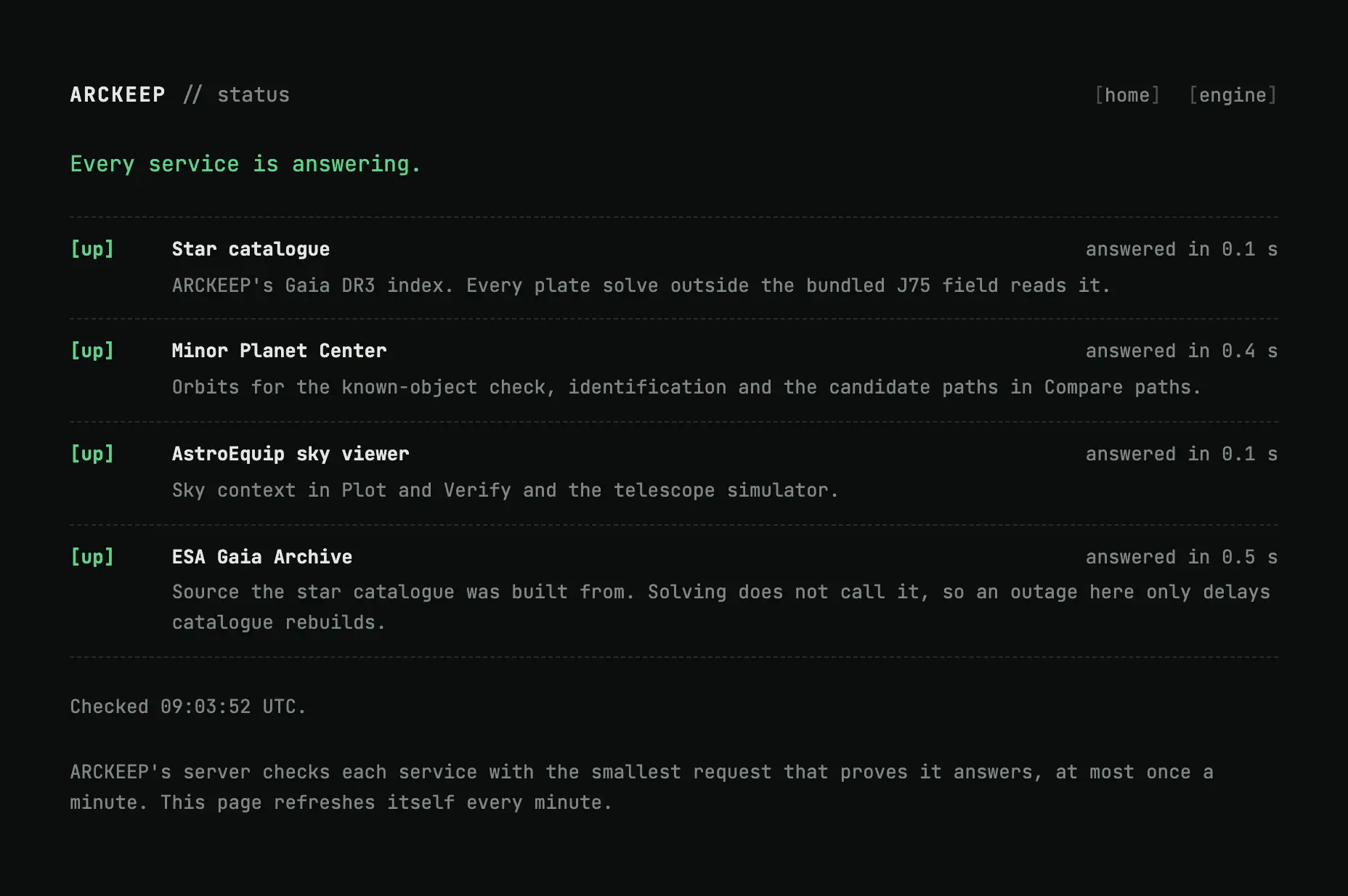
A SERVICE line, or status in yellow or red | An outside service is slow or down: the star catalogue, the MPC, the sky viewer or the Gaia archive. | Open the status page. Wait and retry; your frames are kept. |
| "Too many requests" | The server allows a limited number of requests a minute per visitor. | Wait a minute and try again. |
Something else? Write to [email protected].